
Smart PBR Engine PRO / MAX
Version: SPV E4.0.1
————————————————————————————————————————————-——————————-———-—
Blender Add-on Installation Guide
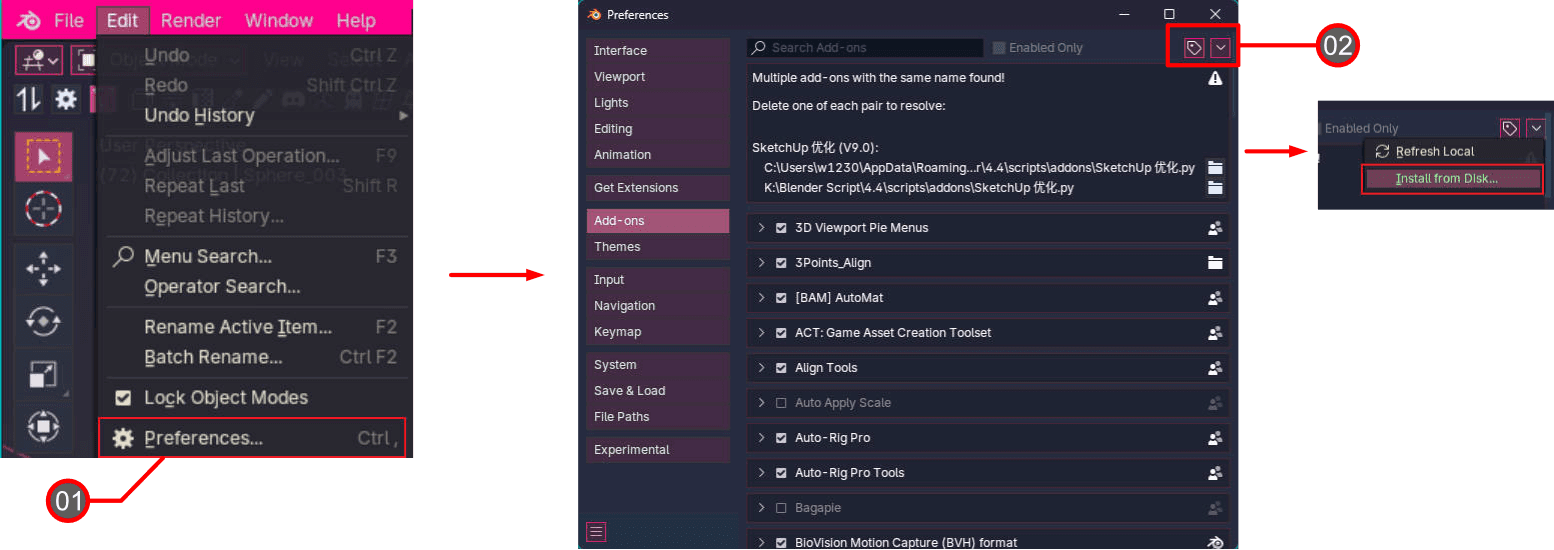
Go to the top-left menu in Blender, then click Edit → Preferences.
Select the Add-ons tab, click the drop-down arrow in the top right corner, and choose Install from Disk...
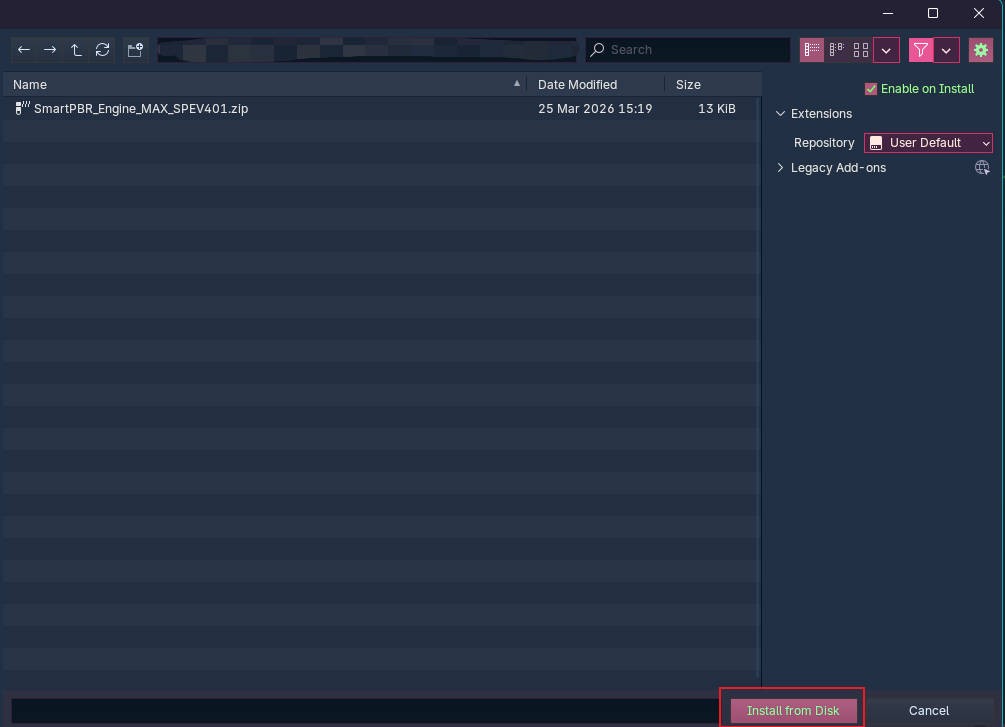
Locate your downloaded
.zipfile, select it, and click Install.
How to installation Blender Add-on
————————————————————————————————————————————-——————————-———-—-—-
Core UI & Automated Workflow Over
S1 Block: Name Batch Match
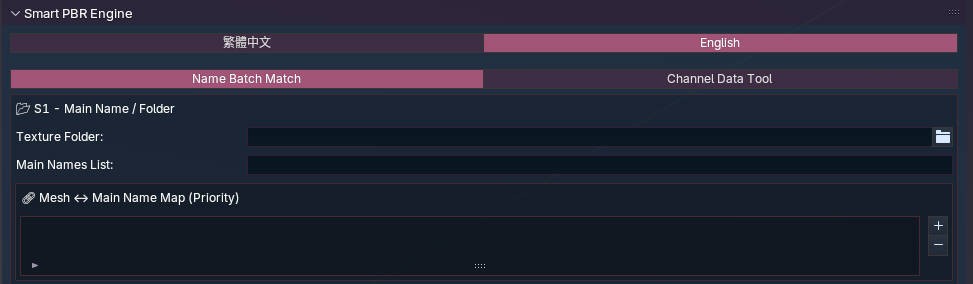
The S1 block handles the batch alignment of your Mesh and Texture folders.
S2 Block: Channel Keywords Setup

Precision is key. In the S2 block, you can define custom keywords for up to 9 PBR channels (BaseColor, MRAO, Metallic, Roughness, Normal, etc.). The engine will accurately fetch and link the corresponding textures based on your setup.
Export Settings: The Export Settings feature allows you to memorize your currently configured suffix names and save them as a JSON file.
The Import Settings feature lets you import your saved suffix settings, so you don't need to reconfigure them for every task.
S3 Block: Smart Shader Creation

After defining your Shader prefix and settings, simply click "One-Click Create Shaders". The system will instantly generate all materials and connect the complex PBR node trees for you in seconds.
S4 Block: Name Batch Match Results
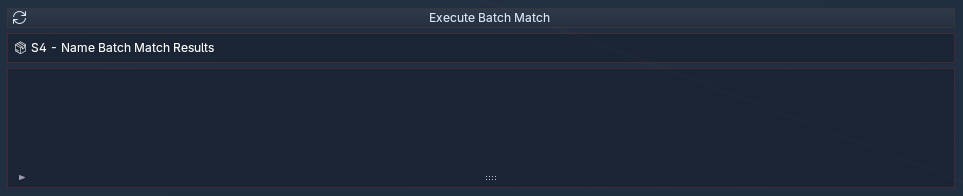
The S4 block displays the batch matching results from S1, allowing you to quickly inspect and verify the data, ensuring a 100% error-free setup before final export.
S5 Block: Engine Bridge (UE / Unity)

Exclusive to Pro & Max versions. The ultimate time-saver. Set your export paths for Unreal Engine or Unity, and with one click, seamlessly send your fully configured models and materials directly into your game engine. No more repetitive import/export loops.
————————————————————————————————————————————-——————————-———-—-—-
S1 Module - Batch Matching Mesh & Texture Folders
————————————————————————————————————————————-——————————-———-—-—-
S2 & S3 - Custom PBR Channels & 1-Click Shader Generation
————————————————————————————————————————————-——————————-———-—-—-
S4 Module - Batch Matching Inspection & Validation
————————————————————————————————————————————-——————————-———-—-—-
S5 Module - Bridge Export to Unreal Engine & Unity
————————————————————————————————————————————-——————————-———-—-—-
Blender Showcase - Full PBR Material Automation Workflow
————————————————————————————————————————————-——————————-———-—-—-
Advanced Techniques
————————————————————————————————————————————-——————————-———-—-—-
Unreal Engine Installation Guide
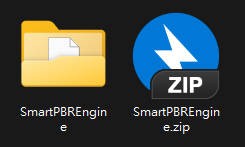
Extract the Archive: Unzip the downloaded
SmartPBREngine.zipfile.Locate the Plugins Folder: Navigate to your Unreal Engine project's root directory. Check if a folder named
Pluginsexists. If it doesn't, create a new folder and name it exactly Plugins.Copy the Plugin: Copy the extracted
SmartPBREnginefolder directly into yourPluginsdirectory.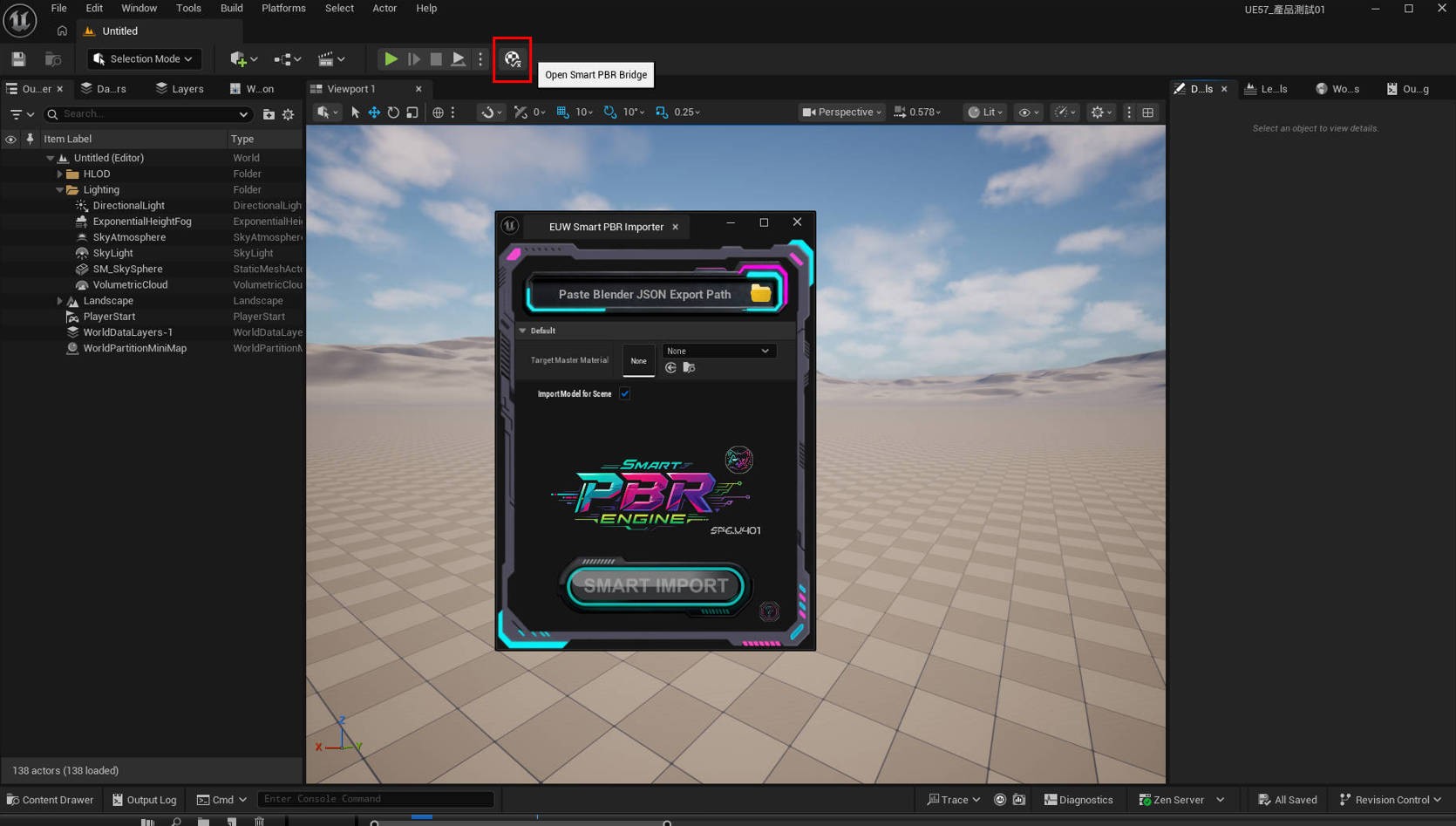
Launch & Verify: Open (or restart) your Unreal Engine project. You will now see the Smart PBR Engine button located directly next to the Play button on the main toolbar.
How to installation plugins
————————————————————————————————————————————-——————————-———-—

Unreal Plugin UI Overview
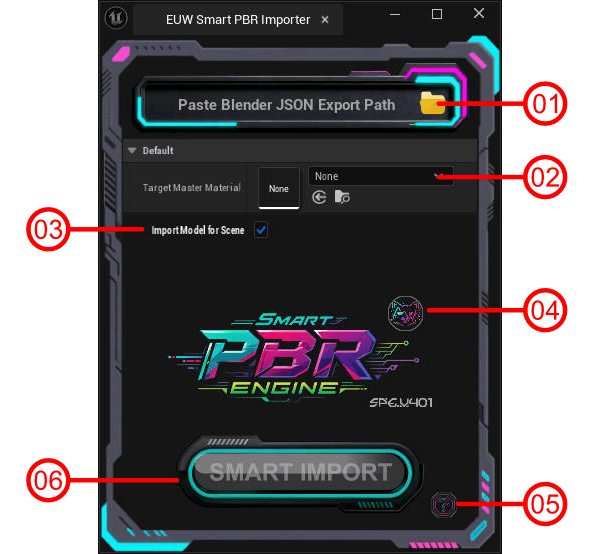
Load Blender JSON Data
Select Target Shader
Spawn Models in Level
ArtMeow Official Website
Documentation
Import
————————————————————————————————————————————-——————————-———-—-—-
SPE Unreal Integration Showcase
The included Shaders can be found in the Unreal Content Browser under:
M_SMRE_MRAO_Inst
M_SMRE_Standard_Inst
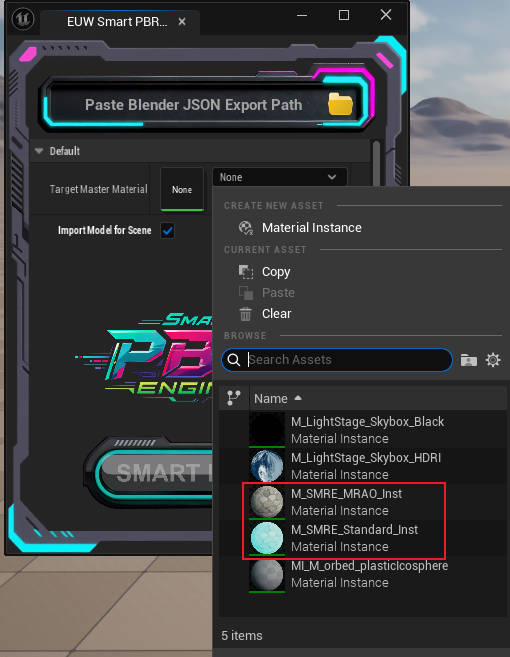
⚠️Important Note: By default, Unreal Engine hides plugin content. To see the Shaders, click the Settings (gear icon) in the top right of your Content Browser and check "Show Plugin Content".
—————————————————————————————————————————————-——————————-———-—--
Unreal Shader Custom
How to Use Custom Shaders?
In your Unreal Material, simply name your Texture Sample Parameter 2D nodes exactly as follows:
Texture Sample Parameter2D Name = BaseColor
Texture Sample Parameter2D Name = MRAO
Texture Sample Parameter2D Name = Metallic
Texture Sample Parameter2D Name = Roughness
Texture Sample Parameter2D Name = Specular
Texture Sample Parameter2D Name = Normal
Texture Sample Parameter2D Name = AO
Texture Sample Parameter2D Name = Displacement
Texture Sample Parameter2D Name = Emissive
SPE Unreal Shader Showcase
————————————————————————————————————————————-——————————-———-——--
Unity Plugins Installation
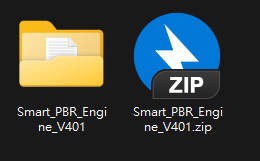
Extract the Archive: Unzip your downloaded
Smart_PBR_Engine_V401.zipfile.
Unity Installation Guide
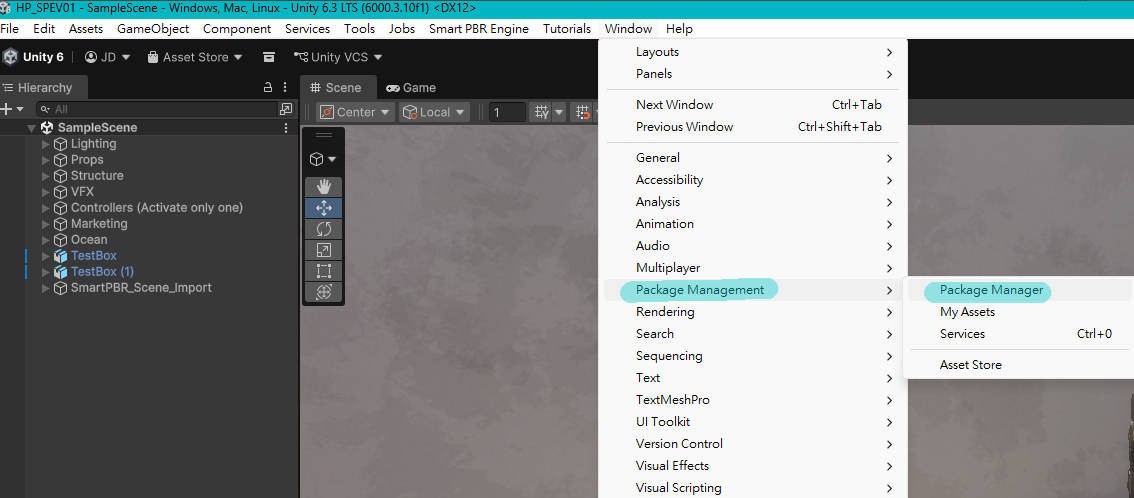
Open Package Manager: Launch your Unity project. From the top menu, navigate to Window > Package Manager.
Install the Dependency: Click the
+(Add) button in the top-left corner of the Package Manager, select Add package from git URL..., paste the following link, and click Add:https://github.com/Cyanilux/ShaderGraphVariables.gitInstall Smart PBR Engine: Once the dependency installation is complete, click the
+(Add) button again, select Add package from disk..., navigate to your extractedSmart_PBR_Engine_V401folder, select thepackage.jsonfile, and click Open.

Launch the Tool: After the installation finishes, you will find the Smart PBR Engine tool available directly in your top Unity menu bar.
How to installation plugins
————————————————————————————————————————————-——————————-———-——--
Unity Plugins UI Overview
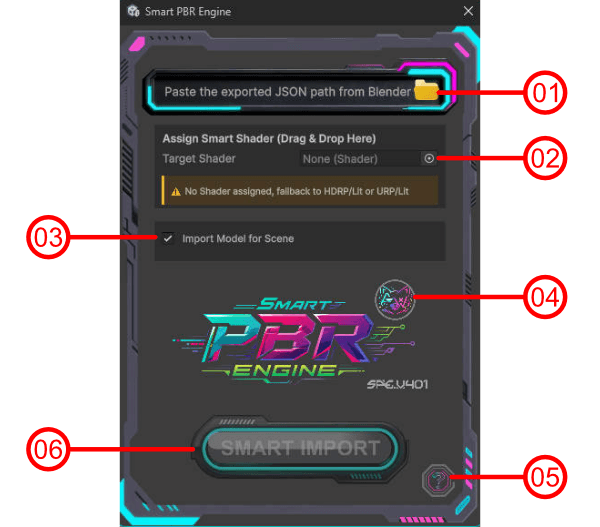
Load Blender JSON Data
Select Target Shader
Spawn Models in Level
ArtMeow Official Website
Documentation
Import
————————————————————————————————————————————-——————————-———-——--
SPE Unity Integration Showcase
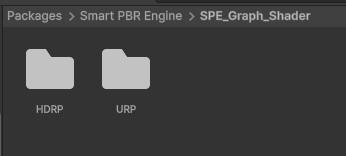
The included Shaders can be found in the Unreal Content Browser under:
SPE_ORM_HDRP_Lit
SPE_Standard_HDRP_Lit
SPE_ORM_URP_Lit
SPE_Standard_URRP_Lit
————————————————————————————————————————————-——————————-———-——--
Unity Shader Custom
How to Use Custom Shaders?
In Unity, simply set the Reference name of your Texture2D properties exactly as follows:
Texture2D Name = BaseColor
Texture2D Name = MRAO
Texture2D Name = Metallic
Texture2D Name = Roughness
Texture2D Name = Specular
Texture2D Name = Normal
Texture2D Name = AO
Texture2D Name = Displacement
Texture2D Name = Emissive
SPE Unity Shader Showcase
————————————————————————————————————————————-——————————-———-——--

Discover More


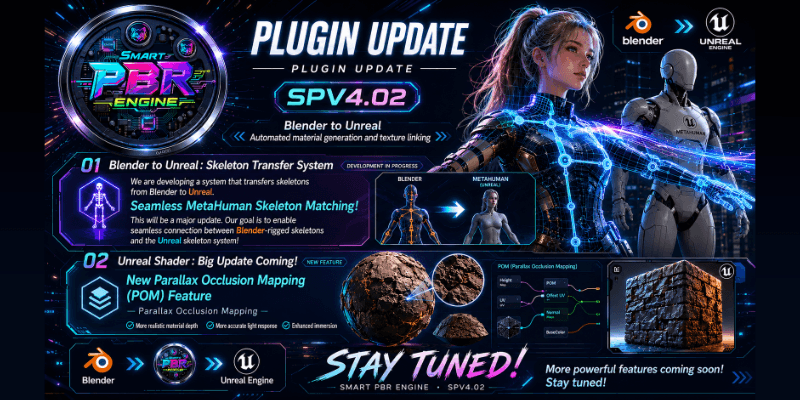
Stay Updated with New Assets
Never miss new releases, limited time discounts, and exclusive Art Meow news.